
Showing posts with label tutorial. Show all posts
Showing posts with label tutorial. Show all posts
Wednesday, June 11, 2008

Wednesday, February 20, 2008
The Principles of Beautiful Web Design Free Download

I fund this great book "The Principles of Beautiful Web Design" it,s not exactly about photo but has a section about colors that can be really helpful. Hope that you can find it useful.
If you are squeamish about choosing colors, feel uninspired by a blank browser window, or get lost trying to choose the right font, this book is for you. In it, I take a methodical approach to presenting traditional graphic design theory as it applies to today’s web site development industry. While the content is directed toward programmers and developers, it provides a design primer that will benefit readers at any level.
This book will show you how to:
* Create amazing designs from scratch.
* Understand why some designs just “work.”
* Unleash your creative talents.
* Master the design fundamentals: layout, color, texture, typography, and imagery.
* Uncover the trade secrets the great designers keep to themselves.
…and much more. Far too many things to mention here!
About the author:
“Jason the Designer Man,” as one of his coworkers once called him, dual-majored in graphic design and digital media at the University of Central Florida. When he’s not working on websites, he enjoys disassembling electronics and using them in his artwork. Jason writes about his adventures in design and technology on his personal site, jasongraphix.com.
You can download it for free here
“You don’t need to go to Art School to design great looking web sites!”
Tuesday, February 12, 2008
Exposure Basics
Getting proper exposure requires the right balance of light, lens opening size (aperture), duration of exposure (shutter speed) and sensor sensitivity (ISO setting). In discussion of exposure, the term f-stop is typically used. A change in exposure of 1 f-stop allows half as much light (if the camera is stopped down - less light) or twice as much light (if the camera is opened up - more light) in the final exposure.
Before going on, I'll briefly talk about proper exposure. In normal shooting conditions, I strive to get the final image exposure correct at the time of capture. I use the histogram to monitor my results. If I see pixels stacked at the left (blocked shadows) or right (blown highlights) on the graph, I know that I have lost shadow or highlight detail (all pixels are the same color - black or white). At that point, I have to accept the detail loss or adjust my exposure (or shoot multiple tripod-stabilized frames at different exposures for merging in Photoshop later). Canon's latest generation DSLRs allow great latitude in exposure adjustment during post-processing, but boosting exposure increases noise (digital grain) in the final image. I try to keep the graph on the histogram where it should be for the final image.
That said, I try to error on the high side of the histogram - slightly higher than desired exposure. This technique is often described as "shooting to the right". Actually, some photographers shoot with an exposure even higher than my slightly higher one. Setting your exposure so that the brightest pixels in the image are near/at the right side of the histogram insures that the best detail is retained in the shadow areas of the image. More light from the dark areas of the image is able to reach the sensor - allowing it to capture more and better quality detail. The exposure for these images is then adjusted to perfection during post-processing.
Now, back to ... Getting the proper exposure requires the right balance of light, lens opening size (aperture), duration of exposure (shutter speed) and sensor sensitivity (ISO setting).
I'll leave the discussion of light to another day. Suffice it to say that shooting under bright sunlight is dramatically different than shooting under dim incandescent lighting.
The aperture setting controls how much light is allowed through the lens. Allow less light through, get a darker image. Aperture values are a relationship of the lens opening to the lens focal length. Each full f-stop represents an opening with twice as much area. Typical full f-stop increments are (from wide to narrow) f/1.4, f/2.0, f/2.8, f/4.0, f/5.6, f/8.0, f/11.0, f/16 ... A change in aperture of 1 f-stop requires a change in one of the other exposure parameters by the same amount to retain the same exposure. Keep in mind that aperture also controls DOF (depth of field/focus). The wider the lens is opened, the less DOF. You must determine how much of your image needs to be in sharp focus - or how blurred you want the background. Lenses are typically sharper and have less vignetting when they are stopped down 1 or 2 stops from wide open. I discuss aperture in this Canon Lens Recommendations page as well.
The shutter speed setting determines the duration of light reaching the sensor. Allow the shutter to stay open longer, get a brighter image. If the aperture is changed by 1 f-stop, the shutter speed is required to be changed by an equivalent amount to retain the same exposure. For example, if the aperture is stopped down from f/2.8 to f/4, the shutter speed must be doubled - from 1/250 seconds to 1/125 seconds for example. Slower shutter speeds/longer exposures are not able to mask/stop camera and subject motion as well as fast shutter speeds/shorter exposures. At times, motion in the picture is desired. A rule of thumb for handholding a camera is to use a shutter speed of 1/(the focal length). You need to find your personal requirement for handholding, but this is a good starting point. To stop sports action often requires a shutter speed of minimally 1/500 second and 1/1000 or higher is better. Doubling or halving the shutter speed requires a similar change in one of the other parameters to achieve identical exposure.
The last parameter is the sensor's sensitivity to light - the ISO sensitivity setting. The camera is able to amplify the light its sensor receives by specific, user-adjustable amounts. Full stop settings are from low sensitivity to high sensitivity ISO 100, 200, 400, 800, 1600 and 3200. I always shoot with the lowest ISO speed that will give me the other parameters I need for the shot. Why? Because noise increases and detail decreases as the data received by the sensor is amplified. This is an area where the latest Canon Digital SLRs perform extremely well, but I still prefer the smooth, detailed image produced at ISO 100. Do not trade ISO speed for a blurry image. It is rarely worth it.
As you progress in your photography, you will want to take more control of the various settings that control exposure. Learning to use the creative modes will allow you to control the power of your Digital SLR. Your manual is a great source for learning these modes - And experience/experimentation is one of the best teachers. My most-used mode is Av (you select the aperture and ISO) closely followed by M (you select all parameters). I suggest you start with these.
Before going on, I'll briefly talk about proper exposure. In normal shooting conditions, I strive to get the final image exposure correct at the time of capture. I use the histogram to monitor my results. If I see pixels stacked at the left (blocked shadows) or right (blown highlights) on the graph, I know that I have lost shadow or highlight detail (all pixels are the same color - black or white). At that point, I have to accept the detail loss or adjust my exposure (or shoot multiple tripod-stabilized frames at different exposures for merging in Photoshop later). Canon's latest generation DSLRs allow great latitude in exposure adjustment during post-processing, but boosting exposure increases noise (digital grain) in the final image. I try to keep the graph on the histogram where it should be for the final image.
That said, I try to error on the high side of the histogram - slightly higher than desired exposure. This technique is often described as "shooting to the right". Actually, some photographers shoot with an exposure even higher than my slightly higher one. Setting your exposure so that the brightest pixels in the image are near/at the right side of the histogram insures that the best detail is retained in the shadow areas of the image. More light from the dark areas of the image is able to reach the sensor - allowing it to capture more and better quality detail. The exposure for these images is then adjusted to perfection during post-processing.
Now, back to ... Getting the proper exposure requires the right balance of light, lens opening size (aperture), duration of exposure (shutter speed) and sensor sensitivity (ISO setting).
I'll leave the discussion of light to another day. Suffice it to say that shooting under bright sunlight is dramatically different than shooting under dim incandescent lighting.
The aperture setting controls how much light is allowed through the lens. Allow less light through, get a darker image. Aperture values are a relationship of the lens opening to the lens focal length. Each full f-stop represents an opening with twice as much area. Typical full f-stop increments are (from wide to narrow) f/1.4, f/2.0, f/2.8, f/4.0, f/5.6, f/8.0, f/11.0, f/16 ... A change in aperture of 1 f-stop requires a change in one of the other exposure parameters by the same amount to retain the same exposure. Keep in mind that aperture also controls DOF (depth of field/focus). The wider the lens is opened, the less DOF. You must determine how much of your image needs to be in sharp focus - or how blurred you want the background. Lenses are typically sharper and have less vignetting when they are stopped down 1 or 2 stops from wide open. I discuss aperture in this Canon Lens Recommendations page as well.
The shutter speed setting determines the duration of light reaching the sensor. Allow the shutter to stay open longer, get a brighter image. If the aperture is changed by 1 f-stop, the shutter speed is required to be changed by an equivalent amount to retain the same exposure. For example, if the aperture is stopped down from f/2.8 to f/4, the shutter speed must be doubled - from 1/250 seconds to 1/125 seconds for example. Slower shutter speeds/longer exposures are not able to mask/stop camera and subject motion as well as fast shutter speeds/shorter exposures. At times, motion in the picture is desired. A rule of thumb for handholding a camera is to use a shutter speed of 1/(the focal length). You need to find your personal requirement for handholding, but this is a good starting point. To stop sports action often requires a shutter speed of minimally 1/500 second and 1/1000 or higher is better. Doubling or halving the shutter speed requires a similar change in one of the other parameters to achieve identical exposure.
The last parameter is the sensor's sensitivity to light - the ISO sensitivity setting. The camera is able to amplify the light its sensor receives by specific, user-adjustable amounts. Full stop settings are from low sensitivity to high sensitivity ISO 100, 200, 400, 800, 1600 and 3200. I always shoot with the lowest ISO speed that will give me the other parameters I need for the shot. Why? Because noise increases and detail decreases as the data received by the sensor is amplified. This is an area where the latest Canon Digital SLRs perform extremely well, but I still prefer the smooth, detailed image produced at ISO 100. Do not trade ISO speed for a blurry image. It is rarely worth it.
As you progress in your photography, you will want to take more control of the various settings that control exposure. Learning to use the creative modes will allow you to control the power of your Digital SLR. Your manual is a great source for learning these modes - And experience/experimentation is one of the best teachers. My most-used mode is Av (you select the aperture and ISO) closely followed by M (you select all parameters). I suggest you start with these.
Digital Photography Tips - The Background
When taking pictures, we concentrate intently on our subjects - but what about the background? Upon later inspection of our photos, we often find the background detracting from an otherwise great shot.
Taking control of the background can help turn a snapshot into a beautiful photo.
The first step to improving the backgrounds in our photos is to be conscious of the background's importance to our photos. We must know that the right backgrounds can make our shots stand out. This often means simply paying attention to what is behind out subjects during our photography sessions.
Unfortunately, the complete solution is not nearly as simple. The normal goal is to keep the subject as the center of interest in a picture (not to be confused with the center of a picture). Your eye should be drawn to the subject in the final image, and the background must not be distracting from the subject. Shots must be setup to take advantage of a clean or pleasing background.
Here are some suggestions ...

My first suggestion is to utilize your lens to throw the background out of focus. The depth of field (amount of in-focus distance) in your picture needs to be reduced enough so that the subject is sharp and the background is blurred. Notice how the Lily stands out against its background in the above picture. There are no distractions. A combination of factors allows your lens to accomplish this task.

First, open the aperture wide. All other factors being identical, a wider the aperture yields a shorter depth of field. How wide? Experience is the best teacher here. The above picture was taken at f/2.8. Experiment!
In conjunction with using a wide aperture setting comes using a lens that has a very wide aperture such as the Canon EF 85mm f/1.8 Lens. It can create a blurred background much more easily than a slow lens (such as the Canon EF 24-85mm f/3.5-4.5 lens). The fast lens has much more latitude on the wide end of the aperture than the slow lens.

Another way to get a more diffusely blurred background is to use a lens with a long focal length such as the Canon EF 70-200mm f/2.8 L IS Lens used for the above Monster Buck picture. It will be much more difficult to blur a background with the Canon EF 16-35mm f/2.8 L Lens. All focal lengths yield the same depth of field when used at the same aperture setting and subject framing. But, the image compression a telephoto focal length provides magnifies the already blurred background. The result is a background that appears more diffusely blurred.
Using a higher focal length has the additional advantage of including less background in your picture. A higher focal length lens has a smaller angle of view. Pretty simple - less background in your picture leaves less room for distraction. This may be a reason to choose the Canon EF 180mm L USM Macro Lens over the Canon EF 100mm USM Macro Lens. Again, less background in the picture reduces the chance of distractions.
Taking control of the background can help turn a snapshot into a beautiful photo.
The first step to improving the backgrounds in our photos is to be conscious of the background's importance to our photos. We must know that the right backgrounds can make our shots stand out. This often means simply paying attention to what is behind out subjects during our photography sessions.
Unfortunately, the complete solution is not nearly as simple. The normal goal is to keep the subject as the center of interest in a picture (not to be confused with the center of a picture). Your eye should be drawn to the subject in the final image, and the background must not be distracting from the subject. Shots must be setup to take advantage of a clean or pleasing background.
Here are some suggestions ...

My first suggestion is to utilize your lens to throw the background out of focus. The depth of field (amount of in-focus distance) in your picture needs to be reduced enough so that the subject is sharp and the background is blurred. Notice how the Lily stands out against its background in the above picture. There are no distractions. A combination of factors allows your lens to accomplish this task.

First, open the aperture wide. All other factors being identical, a wider the aperture yields a shorter depth of field. How wide? Experience is the best teacher here. The above picture was taken at f/2.8. Experiment!
In conjunction with using a wide aperture setting comes using a lens that has a very wide aperture such as the Canon EF 85mm f/1.8 Lens. It can create a blurred background much more easily than a slow lens (such as the Canon EF 24-85mm f/3.5-4.5 lens). The fast lens has much more latitude on the wide end of the aperture than the slow lens.

Another way to get a more diffusely blurred background is to use a lens with a long focal length such as the Canon EF 70-200mm f/2.8 L IS Lens used for the above Monster Buck picture. It will be much more difficult to blur a background with the Canon EF 16-35mm f/2.8 L Lens. All focal lengths yield the same depth of field when used at the same aperture setting and subject framing. But, the image compression a telephoto focal length provides magnifies the already blurred background. The result is a background that appears more diffusely blurred.
Using a higher focal length has the additional advantage of including less background in your picture. A higher focal length lens has a smaller angle of view. Pretty simple - less background in your picture leaves less room for distraction. This may be a reason to choose the Canon EF 180mm L USM Macro Lens over the Canon EF 100mm USM Macro Lens. Again, less background in the picture reduces the chance of distractions.
Fireworks Photography Tips

The spectacle of fireworks attracts millions of spectators annually.
Those of us with love for photography running deep desire to capture everything of beauty we come upon. Fireworks definitely fit that description. The good news is that fireworks photography is easy. Following are some tips to make your fireworks photography successful.
Start with a solid tripod. If your camera is not motionless during the rather long exposures necessary for fireworks photography, the smooth paths of light the fireworks create will appear jagged. Mount your camera on a tripod and carefully level it. I generally like a portrait/vertical orientation (vs. landscape/horizontal orientation), but that is personal preference and is greatly influenced by additional subjects framed in the picture. Fireworks launched simultaneously from multiple locations also work well with a landscape orientation.
Also important is a remote release for the camera. Again, you want the camera to be motionless during the exposure.
Most camera lenses will work well as long as they are the right focal length or focal length range. Most camera lenses provide very good optical quality at f/8 through f/16, the apertures most used for fireworks photography. If you are not sure what focal length you need, take a couple of lenses. Zoom lenses provide the most flexibility if you are not sure of your viewing distance or focal length requirements. A scouting trip prior to the event will (as always) prove valuable.
All fireworks events take place after dark. Working in the dark is challenging even when you are intimately familiar with your equipment. A small issue such as dropping a memory card can turn into a frustrating problem. Pack a small flashlight.
Show up early for the fireworks event. Make sure your location has a clear line of site and that late arriving viewers cannot obstruct your view. You might setup your equipment behind your blanket to help keep the view clear. At the same time, treat others with consideration. Be sure the background is pleasant. Remember that street and other lights will become overexposed blobs that require post-processing to remove. Setting up in the daylight is easier than in the dark. Leveling the camera, setting manual focus and getting the proper framing is difficult against a dark sky. Framing may need to be tweaked after the action starts - but take a guess. Get all of these tasks out of the way before complete darkness.
I generally use manual everything for fireworks photography: manual exposure, manual focus ...
As I mentioned previously, I like to setup my manual focus setting prior to dark. Pick a subject that is a similar distance as the fireworks will be. Since I often start my exposures with a dark sky over all focus points, autofocus does not work. Since a narrow aperture is used at a generally long distance, a wide depth of field usually covers any manual focus errors. Be careful to not bump the focus ring after the action starts. Also remember that changing focal length changes focusing in some zoom lenses. Check your lens for this attribute before dark. As a focus alternative, you can focus on the first burst that is fired.
For a shutter speed, Bulb is often best. I like to press the remote shutter release as a rocket is launching and hold it open until the firework completely fades from its explosion. This is generally 2 to 10 seconds. Missed the rockets on the first blast? You might be able to include the next set of rockets in the same exposure. Because the fireworks are constantly and rapidly moving, keeping the shutter open for long periods of time does not affect the exposure. Exposure is based on the aperture and ISO settings used. If there are subjects in addition to the fireworks included in the photo that are lit by a constant light, a specific shutter speed may be required.
You may think that a fast aperture would be helpful since you are shooting in the dark, but you are actually shooting bright light. The best aperture is usually between a narrow f/8 and an even narrower f/16. The exact setting is somewhat dependent on the distance of the fireworks (light fall-off, air clarity). Using an aperture narrower than f/16 will result in soft (not sharp) images as diffraction becomes an issue. Watch your histogram - keep the brightest pixels close to the right of the graph but not overexposed (stacked on the right side of the histogram).
I generally use ISO 100 for the lowest noise levels possible.
Quickly analyze the first photograph you can capture. How does the histogram read? Is the framing correct? Remember that you can crop later - but building missing sections of bursts very complicated and time consuming. Is the image sharp? Make any adjustments necessary until you have it perfected. Then concentrate on the action. Long shows will require lots of memory capacity - be prepared - Have spare cards pre-formatted. Make spot checks periodically to make sure no settings have changed.
Avoid too many bursts in one fireworks photo. In my opinion, the overexposed areas created by repeated rockets and bursts make a fireworks photo look unattractive in addition to looking too busy. The finale may be the worst time to photograph fireworks. Your opinion may be different - and photography has no rules. Be creative.
For added impact, get additional subjects in your fireworks photos. Large buildings look great in fireworks pictures. Lakes and rivers create beautiful reflections. Adding a person or persons to the photo adds interest. A flash will be of no use in lighting the fireworks, but can be useful in lighting a foreground subject watching the fireworks. Try lighting foreground subjects with your flashlight. You will probably want to focus on foreground subjects instead of the fireworks for these shots. Again, be creative!
Creativity doesn't need to end with the shot. The black sky background in fireworks photos makes it easy to add other fireworks blasts or other items (such as a moon) to your images in Photoshop. Try replacing the complete black background with your country's flag.
Fireworks photography is not hard. Getting a great looking fireworks photograph just requires a little planning and simple execution. You will be adding impressive shots to your collection in no time.
Photoshop tutorials
i think that everyone knows the youtube tutorials (rather than to post those i've put a videobar)
and i will recommend some sites that i visit for documentation
Tutorialized i think it's the biggest source of tutorials on the net (from photoshop to 3d studio max)
from the category blog/site with something interesting to check out...
Trimoon This is a place of interesting things such as photography and things of an artistic nature. Not unlike the junk drawer in your kitchen, full of things you may need someday.
PSDTUTS (ce nume are si asta :P) PSDtuts is a blog/photoshop site made to house and showcase some of the best Photoshop tutorials around. We publish tutorials that not only produce great graphics and effects, but explain in a friendly, approachable manner.
Luxa is a social learning site for Photoshop artists providing new tutorials and design articles, as voted and suggested by your fellow users.
Photoshop Essentials Here, you'll find our complete list of Photoshop tutorials covering the basics of Photoshop, all written with beginner Photoshop users in mind, with an easy to follow, step-by-step approach. While most of the Photoshop tutorials listed here were written using Photoshop CS2, they can be completed using any recent version of Photoshop, including Photoshop 7, CS and CS3.
PST Mission: To create a friendly, community supported site dedicated to helping users of all skill levels get the most out of Adobe Photoshop.
9tutorials
from the forum category we have...
Canon Digital Photography Forums This is a forum for digital camera enthusiasts using Canon cameras. The forums contain also general photography and technique discussion areas which are not camera-type specific.
Fototarget amateur photography community
and i will recommend some sites that i visit for documentation
Tutorialized i think it's the biggest source of tutorials on the net (from photoshop to 3d studio max)
from the category blog/site with something interesting to check out...
Trimoon This is a place of interesting things such as photography and things of an artistic nature. Not unlike the junk drawer in your kitchen, full of things you may need someday.
PSDTUTS (ce nume are si asta :P) PSDtuts is a blog/photoshop site made to house and showcase some of the best Photoshop tutorials around. We publish tutorials that not only produce great graphics and effects, but explain in a friendly, approachable manner.
Luxa is a social learning site for Photoshop artists providing new tutorials and design articles, as voted and suggested by your fellow users.
Photoshop Essentials Here, you'll find our complete list of Photoshop tutorials covering the basics of Photoshop, all written with beginner Photoshop users in mind, with an easy to follow, step-by-step approach. While most of the Photoshop tutorials listed here were written using Photoshop CS2, they can be completed using any recent version of Photoshop, including Photoshop 7, CS and CS3.
PST Mission: To create a friendly, community supported site dedicated to helping users of all skill levels get the most out of Adobe Photoshop.
9tutorials
from the forum category we have...
Canon Digital Photography Forums This is a forum for digital camera enthusiasts using Canon cameras. The forums contain also general photography and technique discussion areas which are not camera-type specific.
Fototarget amateur photography community
Tutorials
i've found some more interesting tutorials
and thought to share with you
9 Pet Photography Tips
Pets fill very quickly their place in our hearts and families and we enjoy having their pictures framed on our desk or wall! However taking pictures of your best friend is not always easy. Pets, unlike humans, do not understand what we are trying to do and won’t just pose for the camera! Here are 9 tips that will help you help you get the most of your photo session
Replacing Skies or What Mood Today
If you are a bit like me and look upon photography with more artistic freedom, you will have a folder of many different skies that range from dark and gloomy to bright cirrus and even vivid sunsets. Then just grab the sky you want and insert into the image with minor effort.
Grand Cayman Fuel Depot
Ryan Goodman ran a project asking his readers to revisit and retouch one of his photos. I’m a little late in getting around to doing the project, but the deadline is January 25 — so you still have a bit of time to get an entry in if you’re interested in participating.
and thought to share with you
9 Pet Photography Tips
Pets fill very quickly their place in our hearts and families and we enjoy having their pictures framed on our desk or wall! However taking pictures of your best friend is not always easy. Pets, unlike humans, do not understand what we are trying to do and won’t just pose for the camera! Here are 9 tips that will help you help you get the most of your photo session
Replacing Skies or What Mood Today
If you are a bit like me and look upon photography with more artistic freedom, you will have a folder of many different skies that range from dark and gloomy to bright cirrus and even vivid sunsets. Then just grab the sky you want and insert into the image with minor effort.
Grand Cayman Fuel Depot
Ryan Goodman ran a project asking his readers to revisit and retouch one of his photos. I’m a little late in getting around to doing the project, but the deadline is January 25 — so you still have a bit of time to get an entry in if you’re interested in participating.
Photoshop® Top Secret™ free download
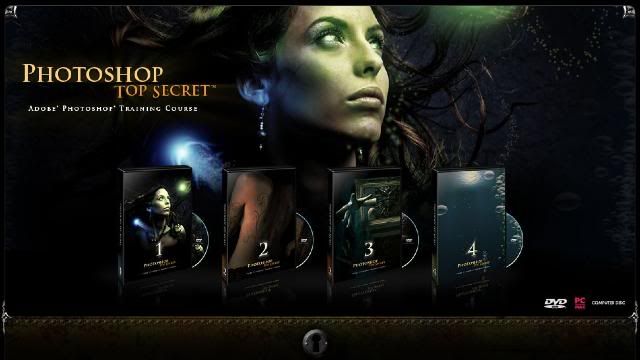
I found this great turorial.
How to Become a Photoshop "Black Belt"-Fast!Just released by Mark Monciardini, Photoshop Top Secret is an Extreme Training Course that teaches you, step by step, how to create cutting-edge graphics and special effects with Adobe Photoshop. This student-friendly home study course includes four DVD-ROMs with over 16 gigabytes of video tutorials and project files. It also comes with a full-color gallery book (printed, not pdf) that shows the end result of each project in the course. You can look, learn, practice, and master these advanced techniques wherever you may be, without the need for expensive classes or tutors. Create Posters, Movie Covers, Surreal Graphics and More!The course will teach you how to become the ultimate Photoshop "black belt" for fun and/or profit. You'll learn how to create top-level special effects for eye-catching movie posters, album covers, book jackets, brochures, mailing pieces, magazine covers, article illustrations, and a tremendously wide range of print ads and Web site graphics.
http://www.photoshoptopsecret.com/

Movie Poster I
Create a popular people montage seen on many movie posters.
LINK:
http://rapidshare.com/users/LA462P
Movie Poster II
Take an ordinary house and turn it into a Sci-fi Movie Poster.
LINK:
http://rapidshare.com/files/50401418/Movie_Poster_II.part1.rar
http://rapidshare.com/files/50401400/Movie_Poster_II.part2.rar
http://rapidshare.com/files/50401624/Movie_Poster_II.part3.rar
http://rapidshare.com/files/50401409/Movie_Poster_II.part4.rar
Movie Poster Credits
Tips and tricks on creating a real “Credit Block” for movie posters.
LINK:
http://rapidshare.com/files/50401376/Movie_Credits.part1.rar
http://rapidshare.com/files/50401383/Movie_Credits.part2.rar
http://rapidshare.com/files/50401535/Movie_Credits.part3.rar
http://rapidshare.com/files/50401285/Movie_Credits.part4.rar
Dark Faces
How I created my creepy Image that has been in Magazines and Ads.
LINK:
http://rapidshare.com/files/50401428/Dark_Faces.rar
Breaking Apart
Create the illusion that a face is falling apart.
LINK:
http://rapidshare.com/files/50402466/Break_Apart.part1.rar
http://rapidshare.com/files/50401560/Break_Apart.part2.rar
http://rapidshare.com/files/50401508/Break_Apart.part3.rar
http://rapidshare.com/files/50401311/Break_Apart.part4.rar
Dream Scene Montage
Create an elephant with wings and place it into a futuristic world.
LINK:
http://rapidshare.com/files/50401529/Dream_SceneMontage.part1.rar
http://rapidshare.com/files/50401668/Dream_SceneMontage.part2.rar
http://rapidshare.com/files/50401563/Dream_SceneMontage.part3.rar
http://rapidshare.com/files/50401278/Dream_SceneMontage.part4.rar
Stone Portrait
Create a “Stone Bust” out of a portrait for a killer special effect.
LINK:
http://rapidshare.com/files/50401623/Stone_Portrait.part1.rar
http://rapidshare.com/files/50401697/Stone_Portrait.part2.rar
http://rapidshare.com/files/50401886/Stone_Portrait.part3.rar
http://rapidshare.com/files/50401673/Stone_Portrait.part4.rar
http://rapidshare.com/files/50401756/Stone_Portrait.part5.rar
Surreal Mist
Create a creamy foggy mist over water and rocks.
LINK:
http://rapidshare.com/files/50401540/Surreal_Mist.part1.rar
http://rapidshare.com/files/50401544/Surreal_Mist.part2.rar
http://rapidshare.com/files/50401580/Surreal_Mist.part3.rar
http://rapidshare.com/files/50401331/Surreal_Mist.part4.rar
Dream Skin
Create a fantasy woman with henna art and dream skin.
LINK:
http://rapidshare.com/files/50401589/Dream_Skin.part1.rar
http://rapidshare.com/files/50401759/Dream_Skin.part2.rar
http://rapidshare.com/files/50401429/Dream_Skin.part3.rar
http://rapidshare.com/files/50401323/Dream_Skin.part4.rar
Special Effects
Learn How to create Orbs, Fireballs and Jellyfish like creatures.
LINK:
http://rapidshare.com/files/50401314/Special_Effects.part1.rar
http://rapidshare.com/files/50401431/Special_Effects.part2.rar
http://rapidshare.com/files/50401417/Special_Effects.part3.rar
http://rapidshare.com/files/50401340/Special_Effects.part4.rar
http://rapidshare.com/files/50401318/Special_Effects.part5.rar
http://rapidshare.com/files/50401320/Special_Effects.part6.rar
http://rapidshare.com/files/50401415/Special_Effects.part7.rar
http://rapidshare.com/files/50401328/Special_Effects.part8.rar
http://rapidshare.com/files/50401308/Special_Effects.part9.rar

Swapping Faces
How to take the face from one photo and place it into a completely different one.
LINK:
http://rapidshare.com/files/51023966/01_Intro.mov
http://rapidshare.com/files/51028936/02_Getting_Started.mov
http://rapidshare.com/files/51030721/03_Matching_Skin_Tones.mov
http://rapidshare.com/files/51032577/04_Face_Shadow_Secrets.mov
http://rapidshare.com/files/51035325/05_Skin_Matching_Secrets.mov
Pop Art
Turn a Photograph into artwork that was popular in the mid 1950’s.
LINK:
http://rapidshare.com/files/50496722/Pop_Art.part1.rar
http://rapidshare.com/files/50492866/Pop_Art.part2.rar
Applying Tattoos
How to apply henna and tattoos to skin.
LINK:
http://rapidshare.com/files/50481136/Applying_Tattoo_s.part1.rar
http://rapidshare.com/files/50483392/Applying_Tattoo_s.part2.rar
Masking Fur
Seamlessly remove the background from furry animals.
LINK:
http://rapidshare.com/files/50485223/Masking_Fur.part1.rar
http://rapidshare.com/files/50487518/Masking_Fur.part2.rar
http://rapidshare.com/files/50489816/Masking_Fur.part3.rar
Vanishing Point
What Vanishing Point is and how to edit images with perspective.
LINK:
http://rapidshare.com/files/50507223/Vanishing_Point.part1.rar
http://rapidshare.com/files/50511659/Vanishing_Point.part2.rar
Web Graphics
Learn how to create commonly used web graphics and screen shots.
LINK:
http://rapidshare.com/files/50520851/Elegant_Headers.rar
http://rapidshare.com/files/50526991/Logo_Basics.rar
http://rapidshare.com/files/50532499/Download_Button.rar
http://rapidshare.com/files/50543201/Seal_of_Guarantee.rar
http://rapidshare.com/files/50552172/Screen_Captures__PC_.rar
http://rapidshare.com/files/50545451/Screen_Captures__Mac_.rar
http://rapidshare.com/files/50549863/Subscribe_Button.rar
http://rapidshare.com/files/50558175/Order_Button.rar
http://rapidshare.com/files/50559384/Computer_Screen_Images.rar
Shattered Type
Create the illusion that text is being shattered like glass.
LINK:
http://rapidshare.com/files/50500038/Shattered_Type.part1.rar
http://rapidshare.com/files/50503596/Shattered_Type.part2.rar
Flower Greeting Card
Use the vector tools in Photoshop to create an elegant looking Greeting Card.
LINK:
http://rapidshare.com/files/50468558/Flower_Greeting_Card.part1.rar
http://rapidshare.com/files/50475456/Flower_Greeting_Card.part2.rar
http://rapidshare.com/files/50470571/Flower_Greeting_Card.part3.rar
Creating DVD Covers
Mark shows you exactly how he created the Photoshop Top Secret DVD covers.
LINK:
http://rapidshare.com/files/50479036/Creating_DVD_Cover_s.part1.rar
http://rapidshare.com/files/50477320/Creating_DVD_Cover_s.part2.rar

Flying out of Bounds
Create the classic “out of bounds” effect with a very cool masking trick.
LINK:
http://rapidshare.com/files/53854880/-__Feersum__-FlyingOOB.part1.rar
http://rapidshare.com/files/53858779/-__Feersum__-FlyingOOB.part2.rar
http://rapidshare.com/files/53851192/-__Feersum__-FlyingOOB.part3.rar
Reaching out of Bounds
Creating the illusion of arms and hands reaching out of a picture frame.
LINK:
http://rapidshare.com/files/51278203/Reaching_Out_of_Bounds.part1.rar
http://rapidshare.com/files/51282073/Reaching_Out_of_Bounds.part2.rar
Chocolate Milk Frog
How to make a frog covered in chocolate.
LINK:
http://rapidshare.com/files/51090808/Chocolate_Milk_Frog.part1.rar
http://rapidshare.com/files/51093773/Chocolate_Milk_Frog.part2.rar
http://rapidshare.com/files/51098112/Chocolate_Milk_Frog.part3.rar
http://rapidshare.com/files/51100483/Chocolate_Milk_Frog.part4.rar
http://rapidshare.com/files/51104392/Chocolate_Milk_Frog.part5.rar
Covered with Wax
Choose an object and cover it with melting wax.
LINK:
http://rapidshare.com/files/51106691/Covered_With_Wax.part1.rar
http://rapidshare.com/files/51109790/Covered_With_Wax.part2.rar
http://rapidshare.com/files/51112318/Covered_With_Wax.part3.rar
Grunge Look
Create a unique grunge background that can be used for almost anything.
LINK:
http://rapidshare.com/files/51192260/The_Grunge_Look.part1.rar
http://rapidshare.com/files/51196157/The_Grunge_Look.part2.rar
http://rapidshare.com/files/51200111/The_Grunge_Look.part3.rar
Square Fruit
Play with mother nature by changing the shape of fruit.
LINK:
http://rapidshare.com/files/51287450/Square_Fruit.part1.rar
http://rapidshare.com/files/51291484/Square_Fruit.part2.rar http://rapidshare.com/files/51718794/Square_Fruit.part3.rar
Invisible Man
How to make a person vanish from their clothing.
LINK:
http://rapidshare.com/files/51205433/Invisible_Man.part1.rar
http://rapidshare.com/files/51210895/Invisible_Man.part2.rar
http://rapidshare.com/files/51216175/Invisible_Man.part3.rar
Metal Collage
How to create a Robot with pieces of a Photo and then place it into another world.
LINK:
http://rapidshare.com/files/51223497/Metal_Collage.part1.rar
http://rapidshare.com/files/51228285/Metal_Collage.part2.rar
Morphing Creatures
Morph animals and reptiles together to create interesting creatures.
LINK:
http://rapidshare.com/files/51252979/Morphing_Creatures.part1.rar
http://rapidshare.com/files/51259915/Morphing_Creatures.part2.rar
http://rapidshare.com/files/51264571/Morphing_Creatures.part3.rar
http://rapidshare.com/files/51272001/Morphing_Creatures.part4.rar
Using Layer Comps
How to create multiple layouts in one Photoshop file using Layer Comps.
LINK:
http://rapidshare.com/files/51219597/Layer_Comps.part1.rar

Vector Art Portrait
Turn a Photograph into beautiful vector art.
LINK:
http://rapidshare.com/files/51851146/Vector_Art_Portrait.part1.rar
http://rapidshare.com/files/51856684/Vector_Art_Portrait.part2.rar
http://rapidshare.com/files/51865053/Vector_Art_Portrait.part3.rar
http://rapidshare.com/files/51877688/Vector_Art_Portrait.part4.rar
http://rapidshare.com/files/51887762/Vector_Art_Portrait.part5.rar
http://rapidshare.com/files/51895918/Vector_Art_Portrait.part6.rar
Dreamy Background
Create Sci-fi looking spiral backgrounds.
LINK:
http://rapidshare.com/files/51748767/Dreamy_Backgrounds.part1.rar
Liquid Metal
The ultimate Liquid metal technique that can be applied to text and objects.
LINK:
http://rapidshare.com/files/51751193/Liquid_Metal.part1.rar
http://rapidshare.com/files/51755087/Liquid_Metal.part2.rar
http://rapidshare.com/files/51758424/Liquid_Metal.part3.rar
http://rapidshare.com/files/51759757/Liquid_Metal.part4.rar
Smoke
Create Psychedelic and Natural Smoke to incorporate into your artwork.
LINK:
http://rapidshare.com/files/51776133/Smoke.part1.rar
http://rapidshare.com/files/51780548/Smoke.part2.rar
Soap Bubbles
Use soap bubbles to add flair to your projects.
LINK:
http://rapidshare.com/files/51784928/Soap_Bubbles.part1.rar
http://rapidshare.com/files/51791004/Soap_Bubbles.part2.rar
Water Bubbles
Use these water bubbles to infuse imagination into your projects.
LINK:
http://rapidshare.com/files/51909867/Water_Bubbles.part1.rar
Underwater Scene
Create an underwater illusion with just the tools in Photoshop.
LINK:
http://rapidshare.com/files/51846287/Underwater_Scene.part1.rar
Swap Animal Skin
Take skin from one animal and place it over another.
LINK:
http://rapidshare.com/files/51836472/Swap_Animal_Skin.part1.rar
Stylized Character
Turn a sketch into colorful art.
LINK:
http://rapidshare.com/files/51796685/Stylized_Character.part1.rar
http://rapidshare.com/files/51804210/Stylized_Character.part2.rar
http://rapidshare.com/files/51815699/Stylized_Character.part3.rar
http://rapidshare.com/files/51825512/Stylized_Character.part4.rar
Masking Mastery
Special video that explains many masking techniques used by the pros.
LINK:
http://rapidshare.com/files/51762273/Masking_Mastery.part1.rar
http://rapidshare.com/files/51766415/Masking_Mastery.part2.rar
http://rapidshare.com/files/51768184/Masking_Mastery.part3.rar
http://rapidshare.com/files/51770219/Masking_Mastery.part4.rar
--------------------------------------------------------------------------------------------------------------------------------
Project Files/Exercise Files
DVD 1
LINK:
http://rapidshare.com/files/50566319/Project_Files.part01.rar
http://rapidshare.com/files/50572676/Project_Files.part02.rar
http://rapidshare.com/files/50584119/Project_Files.part03.rar
http://rapidshare.com/files/50591357/Project_Files.part04.rar
http://rapidshare.com/files/50598245/Project_Files.part05.rar
http://rapidshare.com/files/50606188/Project_Files.part06.rar
http://rapidshare.com/files/50608594/Project_Files.part07.rar
DVD 2
LINK:
http://rapidshare.com/files/53264692/-__Feersum__-PSec-2-Proj.part1.rar
http://rapidshare.com/files/53265853/-__Feersum__-PSec-2-Proj.part2.rar
DVD 3
LINK:
http://rapidshare.com/files/51180564/Project_Files.part1.rar
http://rapidshare.com/files/51184147/Project_Files.part2.rar
http://rapidshare.com/files/51187840/Project_Files.part3.rar
DVD 4
LINK:
http://rapidshare.com/files/51730477/Project_Files.part1.rar
http://rapidshare.com/files/51734240/Project_Files.part2.rar
http://rapidshare.com/files/51736922/Project_Files.part3.rar
Theirs also a Gallerybook included
Download:
LINK:
http://rapidshare.com/files/50616998/DVD_Covers_and_Labels.zip
http://rapidshare.com/files/50612698/Photoshop_TopSecret_Gallery_Book.pdf.zip
Torrents If Interested
http://rapidshare.com/files/49495944/Photoshop_Torrents.zip
The links work for now so download before they remove them
Subscribe to:
Posts (Atom)

